Introduction: Why Version Control Matters
Imagine spending hours building an application, adding new features, and fixing tricky bugs. Then one tiny edit breaks everything. You want to go back to the last working version, but you have no record of what changed.
This exact problem is why Git and GitHub are essential tools for modern developers.
Whether you are learning Python, building websites, developing mobile apps, or deploying cloud infrastructure, version control is a foundational skill.
Git lets you track every change to your code, maintain a clean history of your project, and experiment on separate branches without risking your stable code. GitHub builds on top of Git by providing a cloud platform to host repositories, collaborate with teammates, review code, and contribute to open-source software.
In this beginner-friendly guide, you will learn what Git and GitHub are, how they work together, the essential Git commands you actually need, and how to use them in a real-world workflow.
Your Git & GitHub Learning Roadmap
Follow this step-by-step progression to build practical version control skills without feeling overwhelmed:
Install & Configure Git
Track Local Changes
Push Code to GitHub
Branches & Pull Requests
Conflicts & Safe Undo
What Is Git?
Git is a free, open-source distributed version control system (VCS) that tracks file changes, maintains a complete history of your project, and supports collaborative software development.
Instead of manually saving duplicate folders for every revision, Git takes lightweight snapshots of your project over time. You can inspect previous versions, restore an earlier state, and create isolated development branches without affecting your main codebase.
Linus Torvalds created Git in 2005 to coordinate development of the Linux kernel, and it has since become the industry standard across software engineering.
How Does Git Work?
Think of Git as a timeline of checkpoints for your codebase.
Suppose you are building a small website whose folder starts with these files:
my-website/
├── index.html
├── style.css
└── script.js
Over several days, you work through a series of updates:
- Create the homepage layout in
index.html. - Add visual styling in
style.css. - Implement interactive behavior in
script.js. - Fix a navigation bug.
- Experiment with a new feature.
Git lets you record each logical milestone as a commit. If a future change introduces a bug, you can review the commit history, see exactly which lines changed, and safely restore a working version.
One key detail: Git runs locally on your computer. You do not need an internet connection to stage changes, create commits, switch branches, or inspect project history. All local repository history lives inside a hidden .git/ folder in your project root.
Git stores snapshots of your project rather than just raw diffs. Unchanged files simply reference their previously stored snapshot, making Git both fast and storage-efficient.
Why Is Git Important?
Developers rely on Git every day because it provides clear practical benefits:
- Version tracking: Maintain an exact, searchable timeline of every change.
- Backup and recovery: Roll back to earlier working states whenever something breaks.
- Branching: Build new features in isolation without disturbing stable code.
- Collaboration: Allow multiple developers to contribute to the same codebase without overwriting one another.
- Accountability: See who modified a file, when the change occurred, and why it was made.
- Safe experimentation: Test new ideas freely and discard them if they do not work out.
Whether you work solo on a personal portfolio or collaborate in a team of hundreds, Git brings structure and safety to your workflow.
What Is GitHub?
GitHub is a cloud-based hosting and collaboration platform built around Git. It gives you an online home for your Git repositories along with tools designed for team workflows.
While Git manages your local version history, GitHub provides the remote infrastructure to store backups, share code, review changes, and coordinate work across teams.
For example, imagine three developers building an e-commerce web app:
- Developer A builds the frontend UI.
- Developer B implements the backend API.
- Developer C manages the database schema.
Each developer works locally on their own branch, commits changes with Git, and pushes updates to the shared GitHub repository. From there, teammates review the proposed changes through Pull Requests before merging them into the main branch.
What Can You Do With GitHub?
GitHub adds collaborative developer features on top of core Git repositories:
1. Repository Hosting
Store your Git repositories securely in the cloud and access or sync your projects across multiple computers.
2. Team Collaboration
Invite contributors, assign permissions, protect critical branches, and keep distributed teams synchronized.
3. Pull Requests & Code Review
Propose changes from a branch, inspect line-by-line diffs, leave review comments, and approve updates before they reach production.
4. Issues & Project Tracking
Track bug reports, feature requests, technical debt, and development milestones right next to your code.
5. Documentation
Use README.md files and Markdown documentation to explain setup steps, architecture, and usage instructions.
6. Open-Source Contributions & Portfolio
Explore public repositories, contribute bug fixes to open-source projects, and showcase your coding work to recruiters and engineering teams.
Git vs GitHub: What Is the Difference?
One of the most common questions beginners ask is whether Git and GitHub are the same thing.
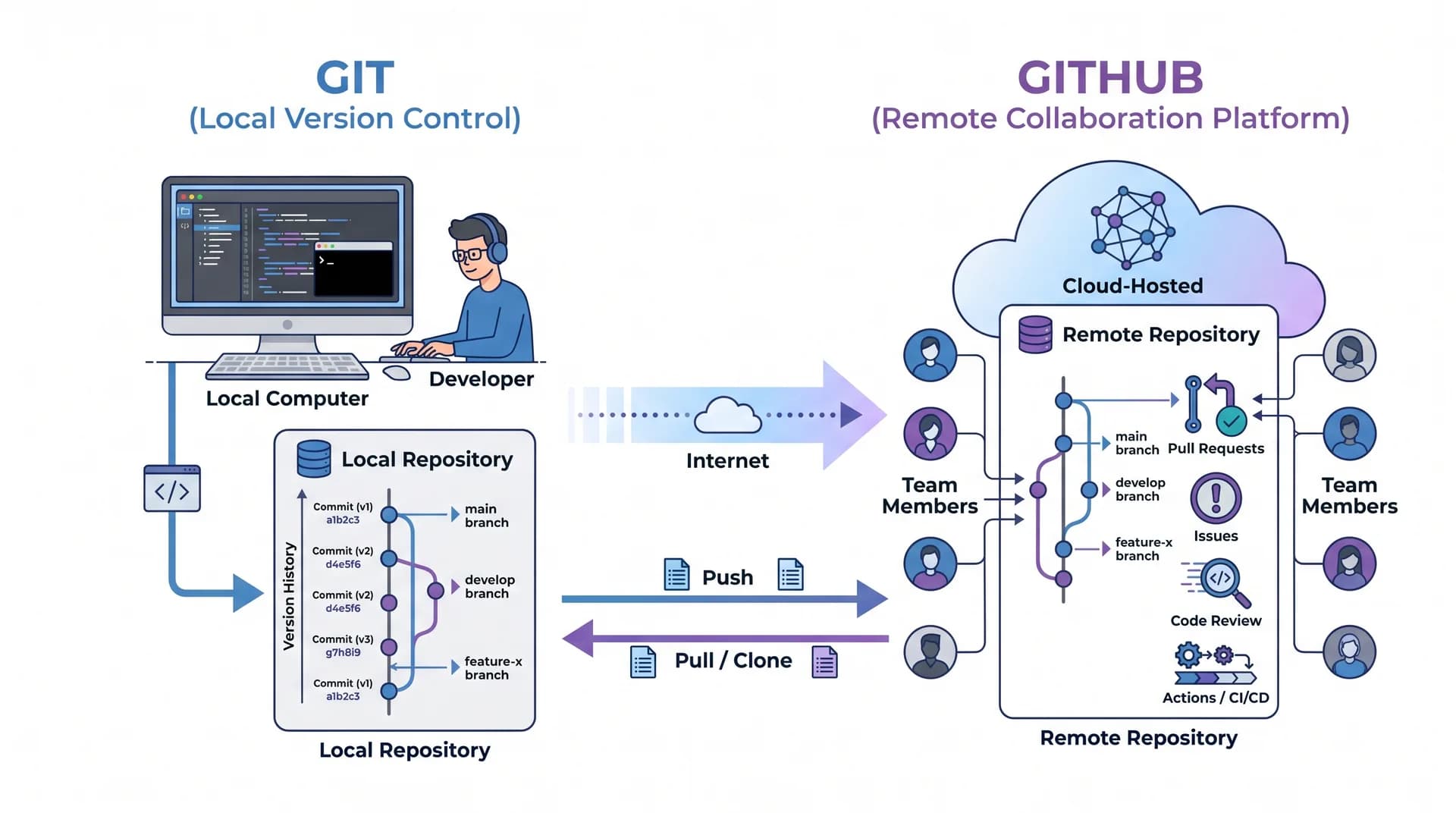
They work closely together, but they serve completely different roles:
| Aspect | Git | GitHub |
|---|---|---|
| Type | Distributed version control system (CLI tool) | Cloud-based repository hosting platform |
| Main Purpose | Track code changes and manage commit history | Host repositories and collaborate online |
| Works Offline | Yes — commits and history work locally | Requires internet for remote sync and web features |
| Repository Storage | Local computer (.git/ directory) | Remote cloud servers |
| Branch Management | Built-in local branch creation and merging | Web UI, pull requests, and branch protection rules |
| Pull Requests | Not a built-in native Git command | Core collaboration and code review feature |
| Collaboration | Remote push/fetch protocols | Pull requests, issues, code review, and GitHub Actions |
Simple takeaway: Git is the engine tracking your project's history; GitHub is the cloud platform where you share and collaborate on those Git repositories. You can use Git completely offline without GitHub, or connect Git to alternative platforms like GitLab or Bitbucket.
Why Do Developers Use Git and GitHub?
Modern software development changes constantly — teams ship features, patch bugs, upgrade packages, and refactor logic every day. Without proper version control, managing code changes quickly becomes error-prone and overwhelming.
Here are four practical ways Git and GitHub solve everyday engineering problems:
1. Managing Clean Software Versions
Instead of cluttering your drive with fragile copies like:
project-final/
project-final-v2/
project-final-fixed/
project-final-really-fixed/
You keep a single clean project directory backed by a clear, chronological commit history.
2. Working Smoothly With Teams
Multiple developers can work on different parts of the same codebase simultaneously without accidentally overwriting each other's edits. When two edits overlap, Git flags the exact conflict so developers can merge changes cleanly.
3. Building a Developer Portfolio
Public GitHub repositories act as verifiable proof of your coding experience, problem-solving process, and familiarity with real developer tools.
4. Powering DevOps and CI/CD Automation
Modern repositories connect directly to automated CI/CD pipelines. Whenever a developer pushes commits or opens a pull request on GitHub, tools like GitHub Actions can automatically:
- Run automated unit and integration tests.
- Check linting and code quality.
- Build production bundles or container images.
- Deploy the verified application to staging or cloud servers.
Essential Git Concepts Every Beginner Should Know
Before running commands in your terminal, take a minute to understand these seven core terms:
1. Repository
A repository (often shortened to repo) is a project folder tracked by Git. It contains your source files plus the hidden .git/ directory where Git stores commit history and metadata. Repositories can be local (on your machine) or remote (hosted on GitHub).
2. Commit
A commit is a permanent snapshot of your staged changes saved into Git history. Each commit gets a unique SHA-1 hash ID, author details, timestamp, and a descriptive commit message:
git commit -m "Add homepage navigation"3. Branch
A branch is an independent line of development inside a repository. For example, you can create a feature-login branch to build user authentication without touching your stable main branch.
4. Merge
Merging integrates commits from one branch into another — for instance, combining your completed feature-login branch back into main.
5. Clone
Cloning downloads a complete copy of a remote repository (files, branches, and full commit history) onto your local computer.
6. Remote
A remote is a pointer to another copy of your repository hosted online (usually on GitHub). By convention, your primary GitHub remote is named origin.
7. Pull Request
A Pull Request (PR) is a GitHub collaboration workflow where you ask teammates to inspect, discuss, and approve commits on your branch before merging them into another branch such as main.
Understanding the Three Main Areas of Git
Git organizes your local changes across three distinct stages. Understanding how files move between them makes every Git command intuitive:
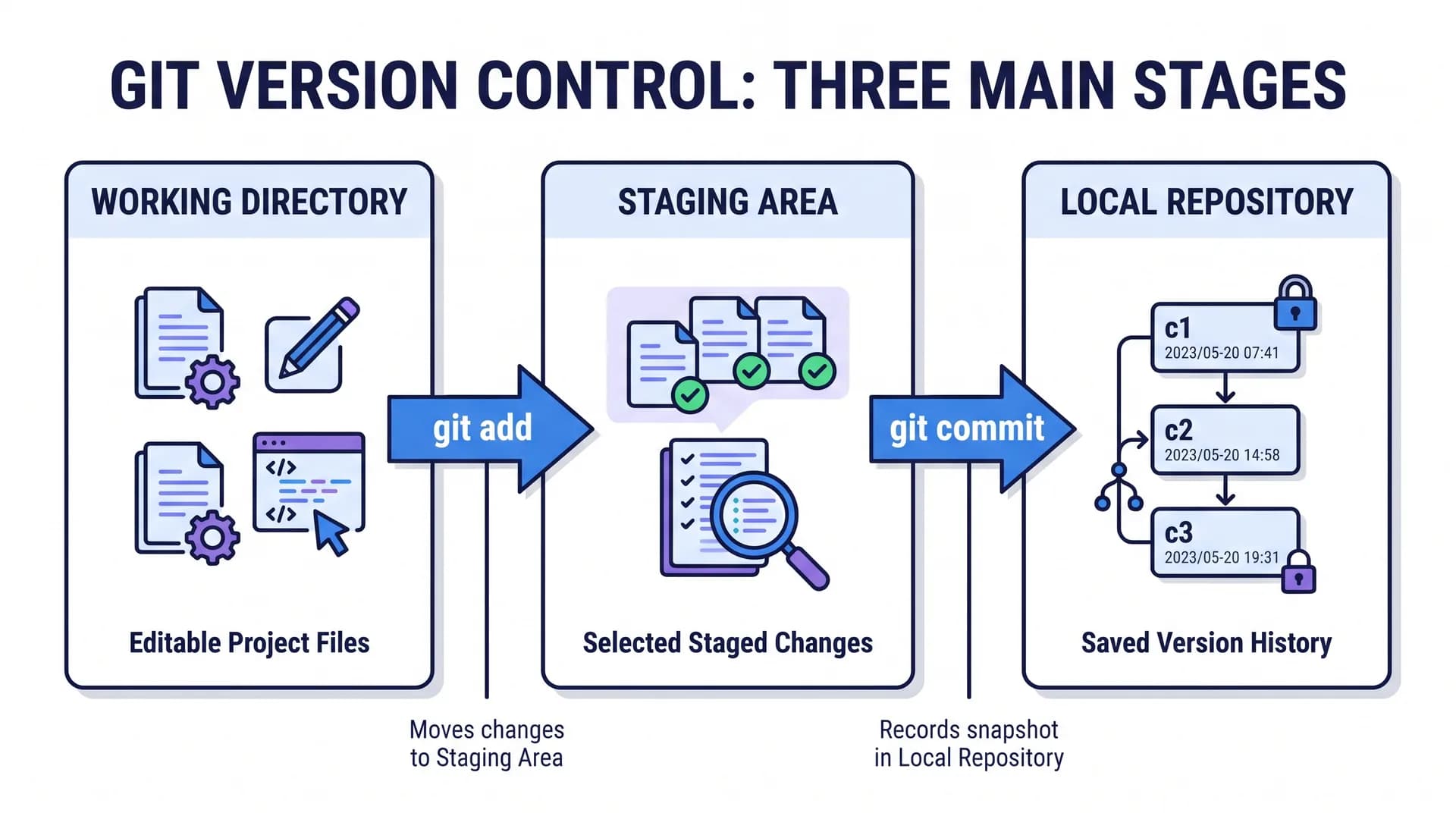
Working Directory
Your active project folder where you create, edit, and delete files. When you modify index.html, Git notices the file in the Working Directory has changed compared to your last commit.
Staging Area (Index)
A preparation zone where you explicitly choose which modified files should go into your next commit. You move changes from the Working Directory into the Staging Area using git add.
Local Repository
The permanent history stored inside .git/ on your machine. Running git commit saves everything currently in the Staging Area as a new snapshot in your Local Repository.
Working Directory   (Edit or create files)
        │
        ▼  git add
Staging Area        (Select changes for next snapshot)
        │
        ▼  git commit
Local Repository    (Save commit permanently in history)
How to Install and Configure Git
Before running Git commands, install Git on your computer and set up your author identity.
Step 1Download and Install Git
Visit the official Git website and download the installer for Windows, macOS, or Linux:
- Windows: Installing Git also includes Git Bash, a Unix-style terminal tailored for Git commands.
- macOS: Git can also be installed via Xcode Command Line Tools (
xcode-select --install) or Homebrew (brew install git). - Linux: Use your distribution's package manager (for example,
sudo apt install git).
Step 2Verify the Installation
Open your terminal (Command Prompt, PowerShell, Git Bash, or macOS/Linux Terminal) and run:
git --versionIf installation succeeded, Git outputs the installed version number (such as git version 2.x.x).
Step 3Configure Your Identity
Git attaches a name and email address to every commit you create so teammates (and GitHub contribution graphs) know who authored the change.
Run these two commands with your details:
git config --global user.name "Your Name"
git config --global user.email "[email protected]"
Verify your saved settings at any time with:
git config --listThe --global flag saves your identity once in your user config so it applies across all repositories on your computer.
Essential Git Commands for Beginners
You do not need to memorize dozens of commands to work effectively. Mastering this core set covers 90% of daily development workflows:
| Command | Purpose |
|---|---|
git init | Initialize a new local Git repository in the current folder |
git clone <url> | Download a copy of an existing remote repository |
git status | Inspect modified, untracked, and staged files |
git add <file> | Stage a specific file for the next commit |
git add . | Stage all new, modified, and deleted changes in the directory |
git commit -m "message" | Record staged changes as a new commit snapshot |
git log --oneline | View a compact list of recent commits |
git diff | Show exact line-by-line unstaged changes |
git branch | List local branches (shows active branch with *) |
git switch <branch> | Switch to an existing branch |
git switch -c <branch> | Create a new branch and switch to it immediately |
git merge <branch> | Merge changes from another branch into your current branch |
git remote -v | Display configured remote repository URLs |
git push | Upload local commits to the remote repository |
git pull | Fetch and merge remote changes into your current branch |
git fetch | Download remote history updates without modifying working files |
git restore <file> | Discard unstaged edits in a tracked file |
git switch vs git checkout: Many older tutorials use git checkout -b feature-name to create and switch branches. Modern Git (version 2.23+) introduced git switch -c feature-name to separate branch switching from file restoration (git restore), making commands clearer and safer for beginners.A few quick distinctions to remember:
git fetchdownloads remote updates safely without changing your local files or branches.git pullrunsgit fetchand immediately merges (or rebases) those remote changes into your current branch.git pushuploads your local commits to GitHub (or another remote).git addstages files for the next snapshot — it does not create a commit yet.
For advanced options and flags, check the official Git reference manual.
How to Use Git and GitHub: A Step-by-Step Example
Let's walk through a complete beginner workflow from creating a local folder to publishing your code on GitHub.
Step 1Create a Project Folder
Create a directory named my-first-project and move into it:
mkdir my-first-project
cd my-first-project
Create an index.html file inside that folder with the following markup:
<h1>Hello, Git!</h1>
<p>My first version-controlled project.</p>
Step 2Initialize Git
Turn this regular directory into a Git repository:
git initGit creates a hidden .git/ folder and starts monitoring changes inside my-first-project.
Step 3Check the Repository Status
Inspect what Git sees right now:
git statusGit reports index.html under Untracked files — it recognizes the file exists, but it has not been staged or committed yet.
Step 4Stage the File
Add index.html to the Staging Area:
git add index.htmlRun git status again to confirm:
git statusindex.html now appears under Changes to be committed.
Step 5Create Your First Commit
Save the staged snapshot permanently into your local repository history:
git commit -m "Create initial project"Your first commit is now recorded!
Step 6Create a GitHub Repository
- Sign in to your GitHub account.
- Click the + icon in the top-right corner and select New repository.
- Name the repository
my-first-projectand pick Public or Private. - Leave options like "Add a README file" or ".gitignore" unchecked for now so the remote starts empty and matches your local commits cleanly.
Step 7Connect Your Local Repository to GitHub
Copy the repository HTTPS or SSH URL shown on GitHub and link it as origin:
git remote add origin https://github.com/USERNAME/my-first-project.gitEnsure your default branch is named main:
git branch -M main(Replace USERNAME with your actual GitHub username.)
Step 8Push Your Code to GitHub
Upload your local main branch to GitHub and configure upstream tracking:
git push -u origin maingit push, authenticate using a Personal Access Token (PAT), an SSH key, or the GitHub CLI (gh auth login) instead of your regular account password.Refresh your GitHub repository page in the browser — index.html and your commit message are now live online!
Working With Existing Repositories: Clone, Sync, and Inspect
Not every project starts with git init. Often you will start by downloading an existing repository from GitHub or syncing updates made by teammates:
# Download an existing repository from GitHub
git clone https://github.com/USERNAME/project-name.git

# Enter the project directory
cd project-name

# Inspect line-by-line changes before staging
git diff

# View compact commit history
git log --oneline

# Pull the latest commits from GitHub before starting work
git pull origin main
Running git diff before staging and git pull before starting new tasks helps prevent surprises and merge conflicts.
Understanding Branches and Pull Requests
Branching is one of Git's greatest strengths. It lets you develop features, run experiments, or fix bugs safely without touching your stable production branch.
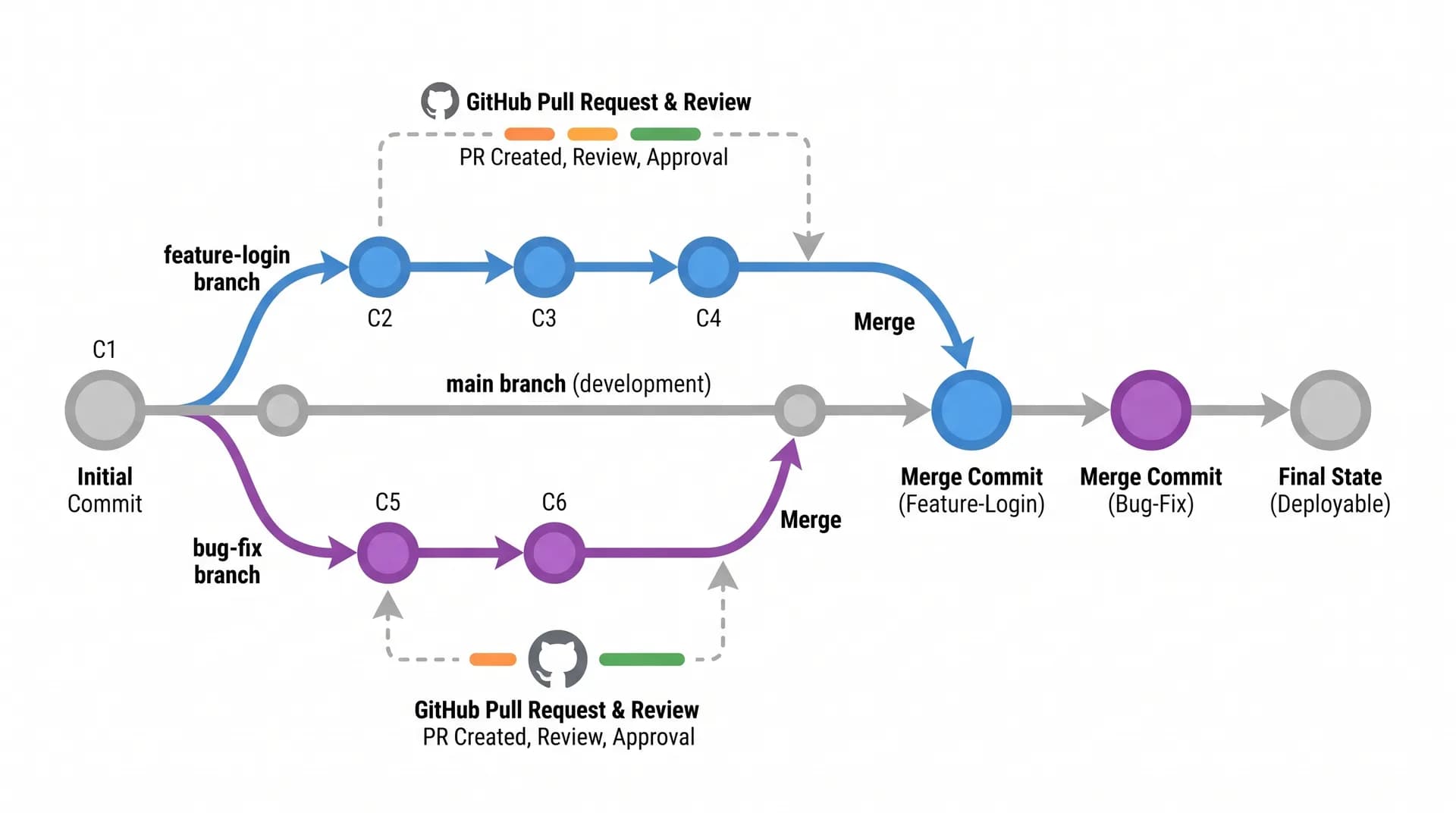
Suppose your application already has a working main branch and you want to add a login screen. Rather than editing main directly, create and switch to a dedicated feature branch:
git switch -c feature-loginWork on your login code, then stage and commit your updates on the new branch:
git add .
git commit -m "Add login functionality"
Push your feature branch to GitHub:
git push -u origin feature-loginWhat Is a Pull Request?
Once feature-login is pushed to GitHub, GitHub displays a banner prompting you to open a Pull Request (PR).
A Pull Request creates a dedicated review space where teammates can:
- Inspect every modified file and commit side by side.
- Suggest improvements or leave inline comments on specific lines.
- Trigger automated tests and CI checks.
- Approve the code before clicking Merge pull request to combine it into
main.
After merging a Pull Request on GitHub, sync your local main branch and delete the finished feature branch cleanly:
git switch main
git pull origin main
git branch -d feature-login
How to Undo Mistakes Safely in Git
Every developer accidentally edits the wrong file, stages something too early, or needs to back out a bad commit. Git provides safe ways to recover at each stage:
# 1. Discard unstaged local edits in a file (restores last committed version)
git restore index.html

# 2. Unstage a file you added by mistake (keeps your file edits intact)
git restore --staged index.html

# 3. Undo a commit that was already pushed by creating a safe inverse commit
git revert <commit-hash>git reset --hard or git push --force from online forums. Avoid running force-pushes on shared branches like main, as doing so permanently erases commit history for teammates. Use git revert whenever commits have already been shared.Common Git Mistakes and How to Avoid Them
Most beginner frustration with Git comes from a handful of predictable habits. Keep this checklist handy:
| Common Mistake | How to Avoid It |
|---|---|
| Forgetting to stage or commit changes | Run git status regularly before switching branches or ending a session |
| Writing vague commit messages | Write clear messages like "Fix navbar overflow on mobile" instead of "update" |
Working directly on main | Create a dedicated feature branch with git switch -c for every new task |
| Forgetting to pull remote updates | Run git pull before starting shared work to minimize merge conflicts |
| Staging unnecessary or temporary files | Check git status and git diff instead of blindly running git add . |
Accidentally committing API keys or .env | Configure .gitignore early and audit staged files before pushing |
| Ignoring merge conflict markers | Inspect every conflict marker carefully and test your code after resolving |
What Is a Merge Conflict?
A merge conflict happens when two branches edit the exact same lines in the same file (or one branch modifies a file another branch deleted), and Git cannot guess which version is correct.
When a conflict occurs, Git pauses the merge and inserts clear conflict markers inside the affected file:
<<<<<<< HEAD
<h1>Welcome to My Website</h1>
=======
<h1>Welcome to Our Application</h1>
>>>>>>> feature-branch- Everything between
<<<<<<< HEADand=======comes from your current branch. - Everything between
=======and>>>>>>> feature-branchcomes from the incoming branch.
To resolve the conflict:
- Open the file in your code editor and decide which content to keep (or combine both).
- Remove the
<<<<<<<,=======, and>>>>>>>marker lines completely. - Save the file, stage it, and finish the merge commit:
git add index.html
git commit -m "Resolve merge conflict"
If you are in the middle of a git rebase, you would run git rebase --continue instead of git commit after staging.
What Is a .gitignore File?
A .gitignore file lives in your project root and tells Git which untracked files and folders should never be staged or uploaded to GitHub.
For example, a Node.js or Next.js project typically includes patterns like:
node_modules/
.env
.env.local
.next/
dist/
*.log
This keeps bulky installed dependencies, build output, and private local configuration out of your repository.
.gitignore only ignores untracked files — if you already committed .env earlier, Git will continue tracking it. To untrack an already-committed file without deleting it locally, run git rm --cached .env and commit the removal. Never commit API keys, database passwords, or private credentials to any public repository!Git Best Practices for Developers
Learning commands gets you started; building consistent habits turns Git into a superpower:
- Make small, focused commits: Group related edits into logical milestones rather than one giant commit at the end of the week.
- Write meaningful commit messages: Explain what changed (and why if non-obvious) in concise imperative style (e.g.,
"Add input validation to signup form"). - Isolate features on branches: Keep
mainclean, testable, and deployable at all times. - Sync often: Pull changes from
mainfrequently so branches stay close to production and conflicts stay tiny. - Review before committing: Make
git statusandgit diffmuscle memory before every commit. - Document your project: Include a clear
README.mdexplaining what the project does and how to run it locally.
Frequently Asked Questions (FAQs)
1. What is Git in simple terms?
Git is a version control tool that tracks every change made to your project files. It lets you save checkpoints (commits), compare edits over time, experiment on isolated branches, and roll back to previous working versions whenever needed.
2. What is the difference between Git and GitHub?
Git is the version control software installed locally on your machine. GitHub is an online cloud platform that hosts Git repositories and adds collaboration features like Pull Requests, Issues, code review, and automated workflows. You can use Git completely offline without GitHub.
3. Is Git free to use?
Yes. Git is completely free and open source. GitHub also offers a generous free tier that includes unlimited public and private repositories along with core collaboration features.
4. Do I need to know programming before learning Git?
No. You can learn Git alongside your very first HTML or programming lessons — in fact, starting early saves beginners hours of frustration! Building solid programming fundamentals makes understanding project files and workflows even easier.
5. What are the most important Git commands for beginners?
Start with these eight everyday commands:
git initto initialize a local repository.git cloneto download an existing repository.git statusto inspect changed and staged files.git addto stage changes for your next commit.git committo save a snapshot in local history.git pushto upload commits to GitHub.git pullto fetch and merge remote updates.git branch/git switchto create and navigate branches.
6. What is the difference between git pull and git fetch?
Both commands communicate with your remote repository. git fetch downloads remote commits and branch metadata so you can inspect them without changing your local files. git pull downloads remote updates and immediately integrates them into your active branch (via merge or rebase).
7. What is a GitHub repository?
A GitHub repository is your project's online home. It stores your source code, full Git commit history, documentation (README.md), Issues, Pull Requests, and workflow automations.
8. What is a Git branch and why is it useful?
A Git branch is a separate pointer to a line of commits. Branches let you build features or fix bugs safely without breaking stable code on main. Once finished and tested, you merge the branch back in.
9. What is a Pull Request in GitHub?
A Pull Request (PR) is a formal request on GitHub asking teammates to review commits from your branch before merging them into another branch. It powers code review, discussions, automated CI checks, and safe team collaboration.
10. Is Git important for DevOps engineers?
Yes — Git is the backbone of modern DevOps workflows. DevOps teams store application source code, Dockerfiles, Kubernetes manifests, Infrastructure as Code (Terraform), and CI/CD pipelines (GitHub Actions, GitLab CI, Jenkins) inside Git repositories so every change is versioned, reviewed, and auditable.
Conclusion: Start Using Git and GitHub Today
Git and GitHub are foundational skills for every modern software developer. Git protects your code with complete local history, clean snapshots, and safe branching, while GitHub empowers you to back up repositories, collaborate via Pull Requests, and contribute to open-source communities.
The fastest way to master Git is hands-on practice: initialize a repository for a small HTML or coding project, make several commits, push it to GitHub, and try creating a branch and opening your first Pull Request.
Test Your Git & GitHub Skills
Put everything you just learned into practice with our timed interactive Git & GitHub quizzes — start with the Fundamentals quiz and level up to Applied Practice: